 TextRaze
Remove Shadows from Photos
Soften distracting shadows and bring attention back to your subject. Upload a product photo or everyday picture, then compare the edited result in your workspace.
10 credits per successful generation. View pricing
Drop your image here
or choose a file to get started
JPEG, PNG or WebP · Up to 3 MB
Or try an example
Restoring your edit…
Images are temporary. Anyone with an image link can view it. Download your result before leaving.
How to Remove Shadows from a Photo
Start with the original photo when you have it. A clear image gives the editor more visible detail to work with than a small screenshot or a heavily compressed copy.
Upload your photo
Choose an image and open the shadow-removal workspace. Check the preview to make sure you have selected the right photo.
Run the shadow remover
Sign in when prompted, review the displayed credit cost, and start processing. The AI aims to reduce distracting shadows while keeping natural depth.
Compare and download
Inspect the original and edited image, including small details around your subject. Download the result you want to use; downloading it does not cost extra credits.
Cleaner Lighting for Product Photos and Everyday Pictures
A shadow can draw attention away from the item you want someone to see. This photo shadow remover is intended for reducing that distraction in an existing picture, especially when setting up another shoot is inconvenient.
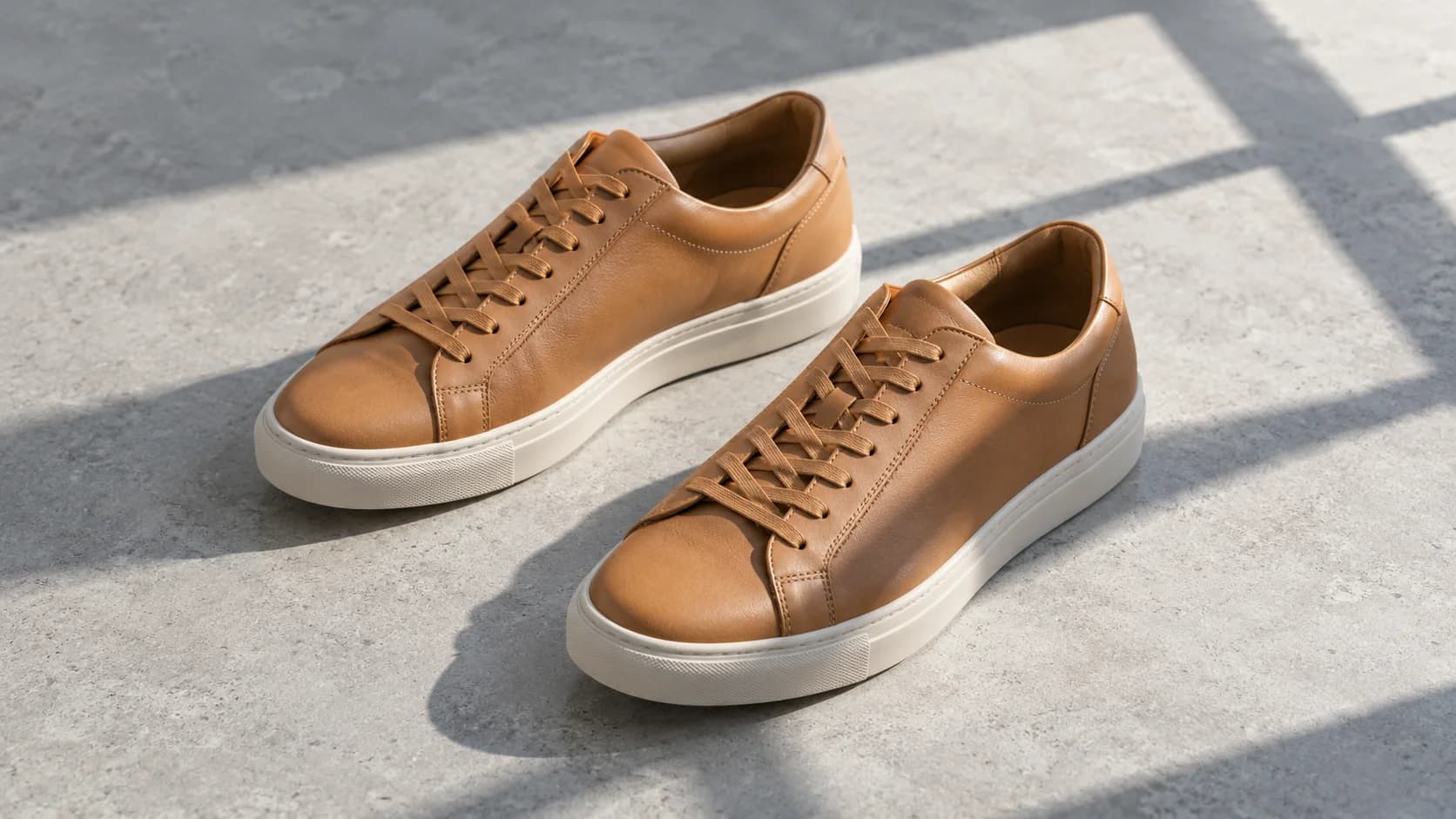
Product listing photos
Reduce harsh shadows across a tabletop or backdrop so buyers can focus on the item. Check product color, edges, logos, and labels before using an AI-edited photo in a listing.
Handmade goods and flat lays
Soften a phone, window-frame, or nearby-object shadow crossing your setup. Fine fabric, wood grain, and small decorative details may be redrawn, so compare them closely.
Everyday photos
Reduce an unwanted dark patch on a wall, table, or other background. If the shadow covers a face or an important detail, the result needs closer inspection because hidden information may be reconstructed.
Keep the Depth. Reduce the Distraction.
Not every shadow needs to disappear. The small shadow where a product meets the table helps it look grounded. Removing all shading can make a photo feel flat or make the subject appear to float.
The editor aims for softer, more even lighting rather than a blank, shadow-free scene. Some shadows may remain. It uses generative AI, so it can also change textures, edges, colors, or other details outside the dark area. Review the whole image before publishing it.
Check the subject
Look at the outline, proportions, surface texture, and any text. For a shop listing, the image should still accurately represent what you sell.
Check the lighting
Look for bright patches, halos along edges, and an unnatural separation between the subject and background. A little natural shading is often better than removing every shadow.
When Another Photo Is the Better Starting Point
AI cannot verify details that were never visible in the original. If an area is almost completely black, the editor may invent plausible texture instead of recovering the real surface underneath. A brighter original or a new photo with softer lighting is a better choice when accuracy matters.
This tool is designed for ordinary photo cleanup, not forensic recovery or guaranteed identity-document compliance. For precise retouching that must preserve every product detail, use a selective manual edit or reshoot the image. Keep your original file so you can always compare.
Frequently asked questions
A few things to know before you edit.