TextRaze
How to Change Menu Prices When You Only Have a JPG
Update a few prices in your existing menu image without hunting for fonts. See a real edit, the full files, and our same-image Canva access check.
By TextRaze
Published Updated
Quick answer
To change a price in a menu JPG without the original design file, select the price in TextRaze, type its current value and replacement, and generate an edited image. You do not need to erase the old number or choose a font yourself; AI attempts to match the image. Check every changed digit and nearby row before using it. If you still have an editable design file, update its text layer instead. For frequent changes across an entire menu, an editable template is usually a better fit.
Choose the simplest method for your menu
The best route depends on the files you still have and the area behind the price. There is no need to use AI for every price change.
| Approach | Use it when | What to check |
|---|---|---|
| Edit the original design file | You still have the editable document or can obtain it from the designer. | Change the text layer and export again. This gives you direct control over font, alignment, and print settings. |
| Cover the old price and add new text | The price sits on a flat, simple background and you can match the font and spacing. | Make the cover blend with the background. Look for a visible rectangle, a mismatched font, or an uneven baseline. |
| Generate a localized text replacement | You only have a flattened image and want to try preserving its existing visual style. | In TextRaze, select the price and enter both strings. Inspect the new number and surrounding design; exact preservation is not guaranteed. |
| Rebuild the menu from an editable template | Many items, prices, or sections need to change regularly, or the source image is too small to use well. | Allow time to proofread the full menu. Keep the editable version so the next update does not depend on an image edit. |
Example: change MOCHA from $5.20 to $5.80
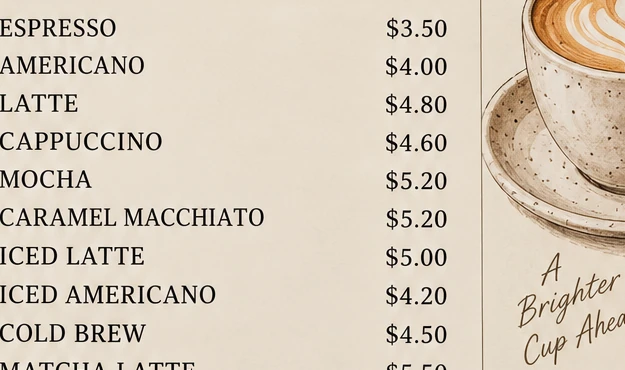
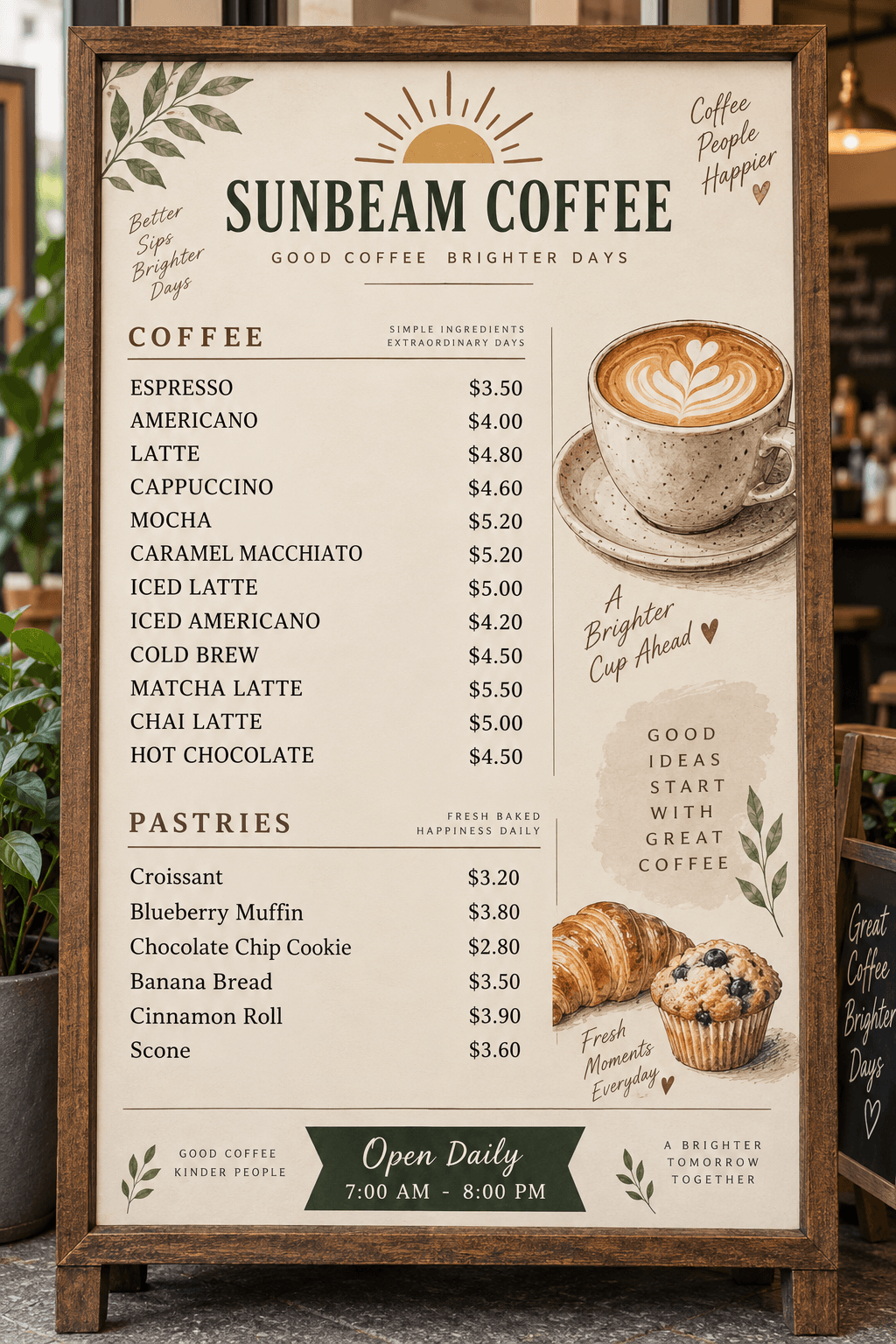
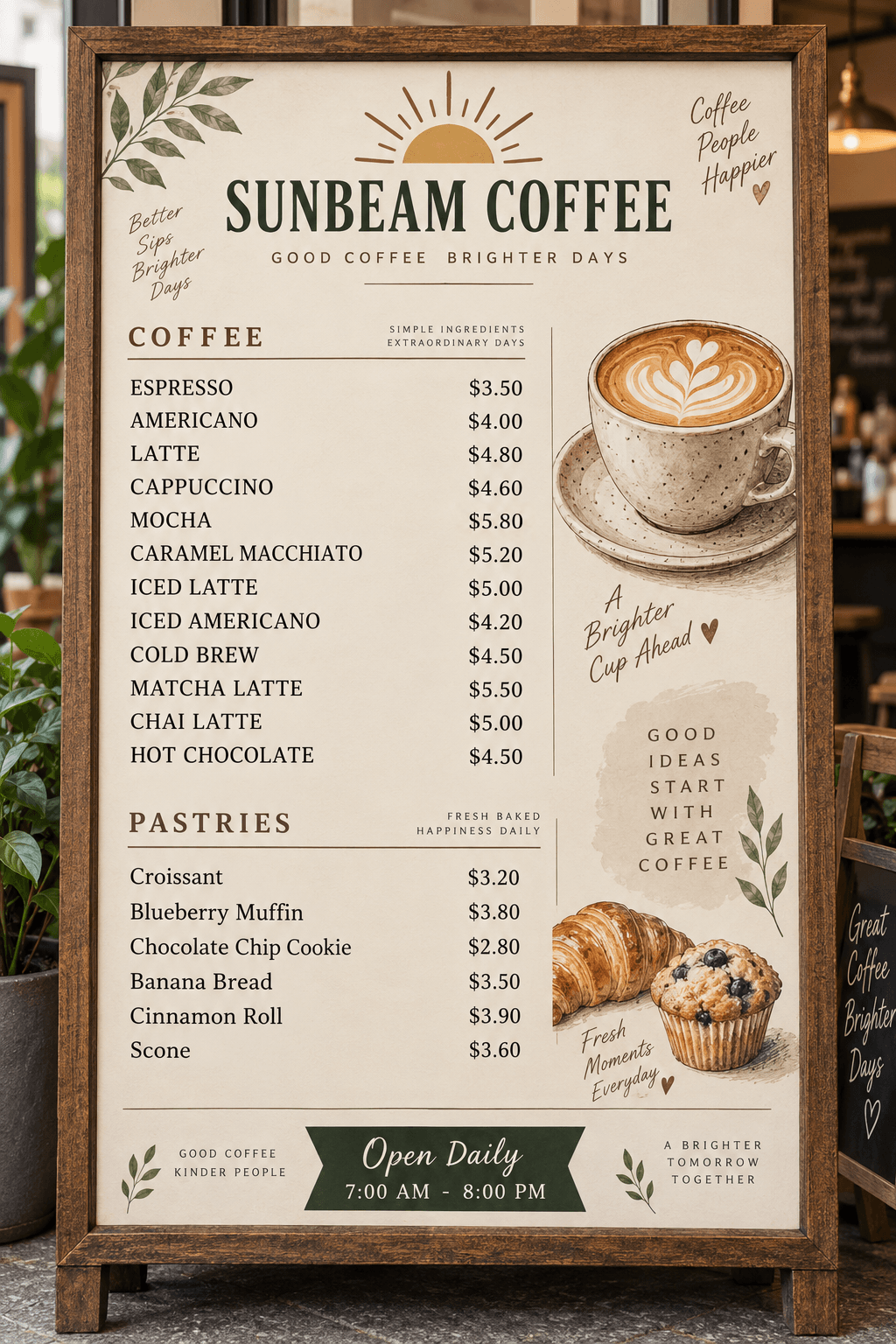
This actual TextRaze edit changes one selected price on a sample menu: MOCHA goes from $5.20 to $5.80. The neighboring CARAMEL MACCHIATO price remains $5.20.
Original
TextRaze result
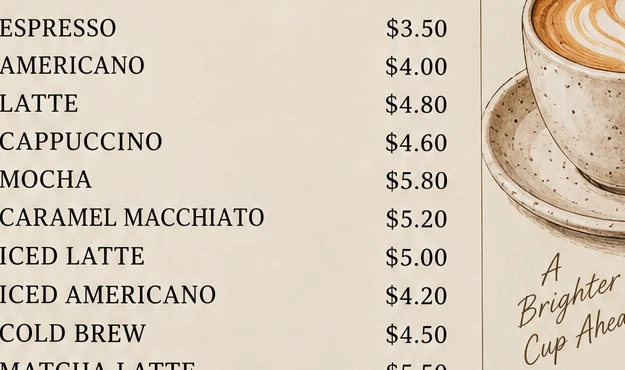
- The original text entered for the selected area was $5.20; the replacement was $5.80.
- The neighboring CARAMEL MACCHIATO row also contains $5.20. Selecting the MOCHA price locates the intended change; matching the words alone is not enough.
- Read every nearby price and inspect the lettering against the original. One accepted sample does not guarantee that every menu, font, or background will edit equally well.
This is a sample menu and an actual AI edit already shown on the TextRaze homepage. The files display the relevant menu detail, not a customer order or a claim that all surrounding pixels are unchanged.
What this example shows
- Requested edit
- MOCHA: $5.20 → $5.80. Leave the next $5.20 price alone.
- Input and output
- 1024 × 1536 PNG files. The example source is PNG; the editor also accepts JPG and WebP.
- Recorded run
- One Generate submission in this saved run, followed by Compare and Download.
- Whole-image check
- In these two PNGs, no decoded pixels changed outside the selection plus its 8-pixel blending edge.
- Time and cost
- Elapsed time and a customer charge were not recorded for this development example. Check current pricing before generating your own edit.
These are the original saved files from a development test documented on October 3, 2026, checked again on October 15. The scene was AI-generated, not supplied by a café customer. This is one selected example, not a success rate, a fresh test of the current service, or a guarantee for other images. No manual retouching was added to the saved result.
Inspect the full menu and selected area
The blue box marks the recorded selection on the original. It is an overlay, not part of the source file. Open either PNG to inspect the full menu at its original dimensions.
Why clicking the price in a JPG does not select text
A JPG stores the appearance of the menu as pixels. It does not retain the original text boxes, fonts, or layers from the design file. Opening it in an image editor therefore does not automatically give you a price field to type into. Renaming the file or converting it to another image format does not recreate those layers.
OCR can help read the words in an image, but extracted text is not the original menu layout. TextRaze uses a different workflow: you identify the area and type the original and replacement text. You do not need to run OCR first, and the tool does not return an editable design document.
2. Select the exact price you want to replace
Draw a rectangle around the whole price, including the currency symbol and decimals you want to change. Leave a little space around the characters while keeping neighboring rows outside the selection. If you only want to change a price, there is no reason to include the dish name or the whole menu.
In the example above, MOCHA and CARAMEL MACCHIATO both cost $5.20. The selection identifies the MOCHA row. Simply asking to replace $5.20 without identifying its location would leave an important ambiguity about which item should change.
3. Enter the original and replacement values
Enter the exact original text from the selected area, then type the new text. For this example, the original is $5.20 and the replacement is $5.80. Keep the currency symbol, decimal separator, and number format consistent with the rest of your menu.
If several prices need updating, the editor supports up to three separate selected areas in one generation. Give each area its own original and replacement text, then check each change in the result.
Sign in with Google or a verified email account when prompted, review the credit cost displayed by the editor, and generate. Credit packs and subscriptions cover text edits; see Pricing for current options. Failed generations that produce no result do not use credits. Downloads are included.
4. Compare the whole menu before downloading
Read the replacement as text, not just as a similar-looking shape. A wrong decimal point, currency mark, or extra digit can change what you charge. Then compare the adjacent rows and the rest of the layout. AI may alter lettering or background details beyond the intended correction.
Text-editing downloads retain the original pixel dimensions, but that does not add missing detail or make a low-resolution source suitable for large-format printing. Check the downloaded file at the size you plan to display it. Keep your original and download the result you want to keep before the temporary editing session expires.
- The item and replacement price are correct, including currency and decimals.
- Other rows with the same original number have not changed unintentionally.
- Font appearance, spacing, alignment, and background look consistent.
- Dish names, dietary labels, and other factual information remain accurate.
- The downloaded image is readable at its intended screen or print size.
Common questions
Can I replace a menu price without erasing it or picking a font?
Yes. In TextRaze, select the price and enter the original and replacement values. AI makes the replacement using the image as visual context. You do not choose a font or manually paint over the old price, but you must review the digits, style, and neighboring items; exact matching is not guaranteed.
Can I change a menu price without the original design file?
Yes, you can edit a flattened image manually or try an AI text replacement. A JPG does not contain the original editable text layers, so inspect the replacement and surrounding image. If you can obtain the editable file, changing the text there is usually more predictable.
Do I need to identify the original font?
TextRaze does not require a font name or font upload. It uses the source image as visual context, but exact font matching is not guaranteed. Small, decorative, curved, or tightly spaced characters need closer review.
Does TextRaze automatically read every price with OCR?
No. You select each text area and enter both the original text and its replacement. The editor does not automatically extract the entire menu into editable fields.
Can I change three prices in one image?
Yes. Add up to three selected areas, each with its own original and replacement text, then submit them together. Review all the changed prices and their neighboring rows before using the result.
Is there an extra charge to download the edited menu?
No. Downloading a completed result is included in the generation cost. The editor shows the current credit requirement before submission, and Pricing lists the current credit packs and subscriptions.
Does a result I do not like still use credits?
Yes. A completed generation uses credits even if you do not like its appearance. A failed generation that produces no result does not use credits. Check the displayed cost before generating and start with one representative edit before committing to more changes.
Will this turn my JPG into an editable menu template?
No. The result is an edited image. If you need repeated changes to many items, keep or rebuild an editable design document so future updates can use actual text layers.